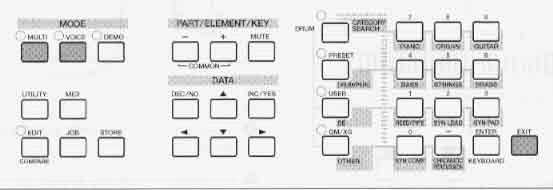
This section describes how to operate the S03 in terms of its most elementary functions.
There are several operation modes that enable you to work efficiently with the various functions of the S03. There are separate play modes for multis and voices. To enter each of these modes use the appropriate mode button (MULTI and VOICE).
There are also separate JOB and EDIT modes for MULTIs and VOICEs. To enter the edit and job mode, press the EDIT or JOB button while in each respective play mode.
Similarly, pressing the STORE button in the MULTI or VOICE mode takes you into the STORE mode, where you can store MULTIs or VOICEs.
In addition to the modes mentioned above, there is also UTILITY mode, which is for making global settings to the instrument and the MIDI mode which contains midi related settings.
Finally, there is the DEMO mode which allows you to play back the demo songs. To select these, press the UTILITY button for the utility mode, the MIDI button for the midi mode and the DEMO button for the demo mode.
1. Voice.
2. Multi
1. Multi
1. Voice
2. Multi
1. Utility
2. Midi
3. Demo
4. Store
Press the utility button to enter the utility mode. To exit to another mode, simply press the respective button for that mode. An arrow appears at the upper left hand of the LCD pointing to “Utility” on the panel, indicating the utility mode.
The utility mode contains eight parameter pages, including global settings for the entire S03 system, as well as some controller settings.
1. Master tune. Adjust the keyboard tuning.
2. Keyboard transpose. Transpose a pitch of the keyboard up or down in semi-tones. This affects information transmitted via midi.
3. Velocity
3.1 Velocity curve. Set the velocity curve to determine how the strength of the note played will affect the sound output. The vel-curve parameter is only available if FIXED velocity is set to OFF.
Settings:
- Normal. The velocity is in proportion to playing strength. The shape of the voice is determined by how hard you press the keyboard.
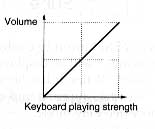
- Soft1. A softer playing style increases the volume level. This is suitable for people with a soft key touch.
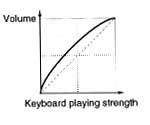
- Soft2. A softer playing style increases the volume level. The response is between Soft1 and Normal.
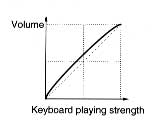
- Easy. This curve is also designed to increase the volume level with a softer playing style. However, the volume level is stable in all registers since the velocity curve in the mid-range is close to normal.
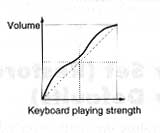
- Wide. A softer playing style lowers the volume and the stronger playing style increases the volume level. This way the dynamic range of playing becomes wider.
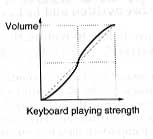
- Hard. A stronger playing style increases the volume level. This is suitable for people with strong key touch.
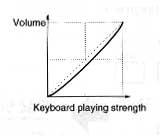
1.2 Fixed velocity
The velocity is fixed at this setting. The sound output is always the same. It does not matter how strongly or softly you play the keyboard.
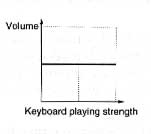
2. Transmit control number. This determines the MIDI control change numbers that affect the modulation wheel and foot controllers.
3. Foot switch transmit controller. This determines the MIDI control change numbers that affect the foot switch.
4. Controller reset. This applies to all controllers. Select whether or not the controller is maintained when voices are changed or if the controller changes with the changing of the voices.
5. Control change number. In the VOICE mode, this determines which control change number affects the assignable controller.
6. Voice effect bypass. This determines whether or not effects in the VOICE mode can be bypassed. Only system effects can be bypassed.
In the UTILITY JOB mode you can restore your synthesiser’s factory default settings.
Factory set (restore factory defaults). This lets you restore the synthesiser’s default internal VOICEs and MULTIs as well as its system and other settings. Once you edit any settings, the original factory defaults will be overwritten and lost.
|
Use the procedure below to restore the factory default settings. ~ |
1. Press the JOB button in the UTILITY mode. The factory set display appears.
2. Press the ENTER button. A confirmation message appears.
3. Press the [INC/YES] button to perform the factory set job. After the job has been completed, a “completed” message appears. To cancel a job while it is been performed, press the [DEC/NO] button.
4. Press the [EXIT] button to return to the UTILITY mode.